Install, remove and configure desktop environments
Armbian desktop installation uses upstream meta-packages from Debian and Ubuntu repositories, making it distro-agnostic and independent of pre-built Armbian desktop packages.
Tiered installs
Every desktop ships at one of three sizes. You can install at any tier and switch between tiers later without uninstalling.
Tier
Contents
Approximate size
Minimal
Desktop environment + display manager + base utilities. No browser, no office suite.
~500 MB
Mid
Minimal plus a browser, text editor, calculator, image and PDF viewer, media player, archive manager and torrent client.
~1 GB
Full
Mid plus LibreOffice, GIMP, Inkscape, Thunderbird and Audacity.
~2.5 GB
The browser shipped at mid and full tiers is chosen automatically: chromium on Debian, firefox-esr on Debian riscv64, and epiphany-browser on Ubuntu (Ubuntu’s chromium and firefox packages are snap-shim wrappers that don’t work without snapd, which Armbian doesn’t ship).
How it works
Installs the desktop meta-package (e.g. xfce4, gnome-session) plus the per-tier extras and any release-specific packages your distribution needs.
Tracks every package the install pulls in. The list is saved to /etc/armbian/desktop/<de>.packages, the chosen tier to /etc/armbian/desktop/<de>.tier. Uninstall and downgrade use these files so they only ever remove packages the desktop install added — packages you installed manually after the fact are never touched.
Applies Armbian branding: wallpapers, icons, login screen theme, and default user settings.
Configures the display manager (LightDM, GDM3 or SDDM) with auto-login enabled by default. You can disable auto-login from the desktop menu without removing the desktop.
Sets up Profile Sync Daemon (psd) to keep browser profiles in RAM, reducing flash media wear.
Removes a small set of unwanted extras pulled in by some meta-packages (e.g. Ubuntu’s apport crash reporter, snap-related stubs).
Switching tiers after install
You don’t need to reinstall to add or remove tier extras. The desktop menu offers “Change desktop to tier” entries for any tier other than the one currently installed. Behind the scenes:
Going up (minimal → mid → full) installs only the new packages introduced by the higher tier.
Going down (full → mid → minimal) removes only the packages the install added that aren’t in the lower tier. Your manually-installed packages are not touched.
Networking
Some desktops (notably GNOME) require NetworkManager. When installed, NetworkManager is configured to coexist with Armbian’s existing systemd-networkd: wired Ethernet stays managed by systemd-networkd, while NetworkManager handles WiFi and VPN connections. This avoids disrupting your existing network configuration.
Supported desktops
Desktop
Best for
Approximate RAM (minimal tier)
XFCE
Single board computers, low-end hardware
~300 MB
GNOME
Modern desktops, touchscreen devices
~800 MB
Cinnamon
Users familiar with Windows layout
~500 MB
MATE
Classic GNOME 2 fans, low-resource systems
~350 MB
KDE Plasma
Power users, heavy customization
~600 MB
i3-wm
Developers, keyboard-driven workflows
~150 MB
Xmonad
Haskell tiling window manager
~120 MB
Enlightenment
EFL-based, lightweight and stylish
~250 MB
Mid and full tiers add roughly 500 MB and 2 GB on top of these minimum figures, depending on which tier extras your release/architecture combination ships.
Desktop installation is resource-intensive
Installing a desktop environment will download and install a large number of packages. The full tier on a fresh Ubuntu image pulls in roughly 2.5 GB and may take a significant amount of time depending on your internet connection and device performance. A reboot is required after installation.
Running module_desktops remove reclaims the disk space; apt-get clean is run automatically as part of the remove path.
Switching desktops
Only one desktop environment should be installed at a time. Remove the current desktop before installing a different one to avoid package conflicts and mixed configurations.
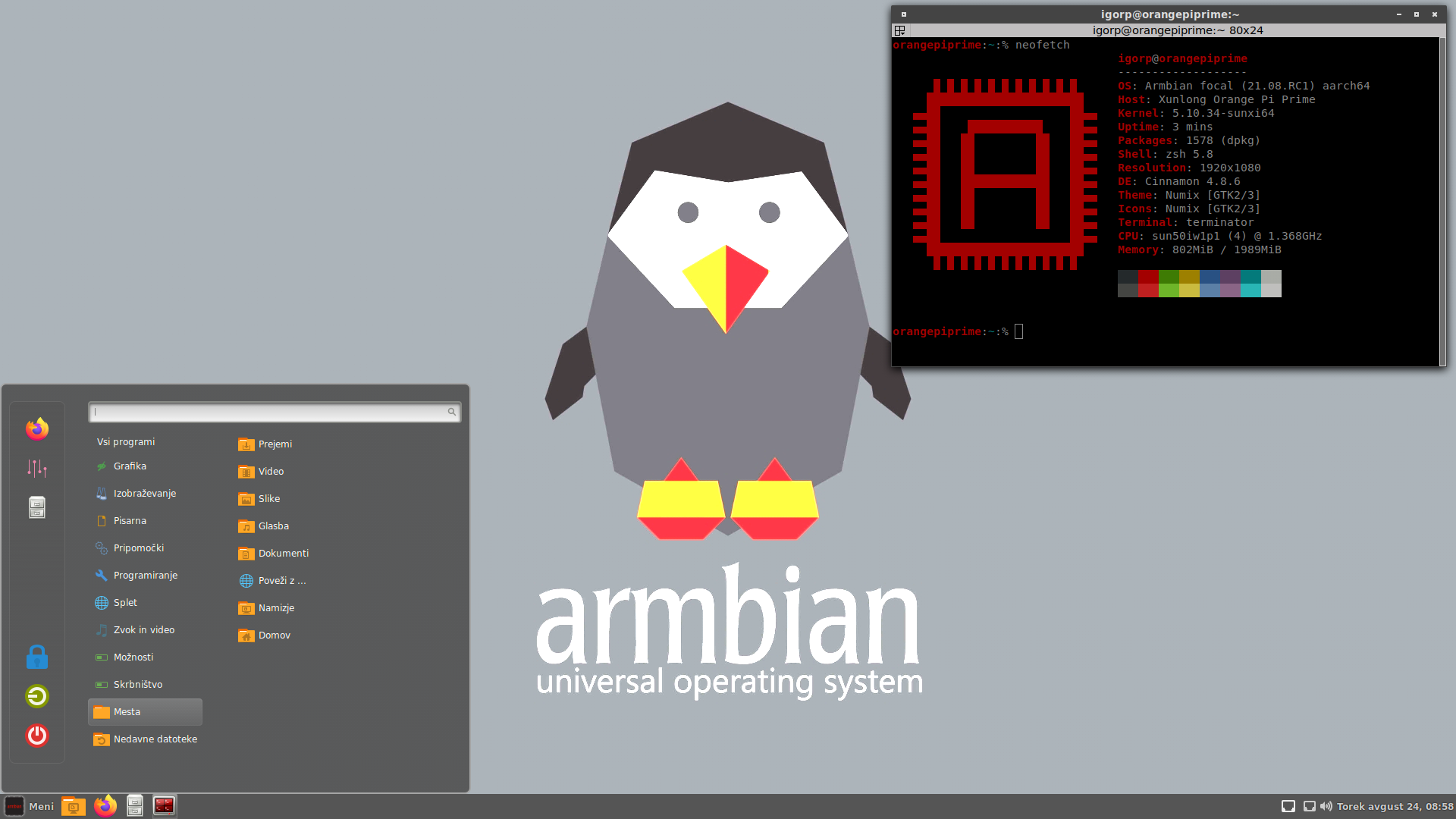
Cinnamon is a Linux desktop environment that provides advanced innovative features and a traditional user experience. The desktop layout is similar to GNOME 2 with underlying technology forked from GNOME Shell. Cinnamon makes users feel at home with an easy-to-use and comfortable desktop experience.
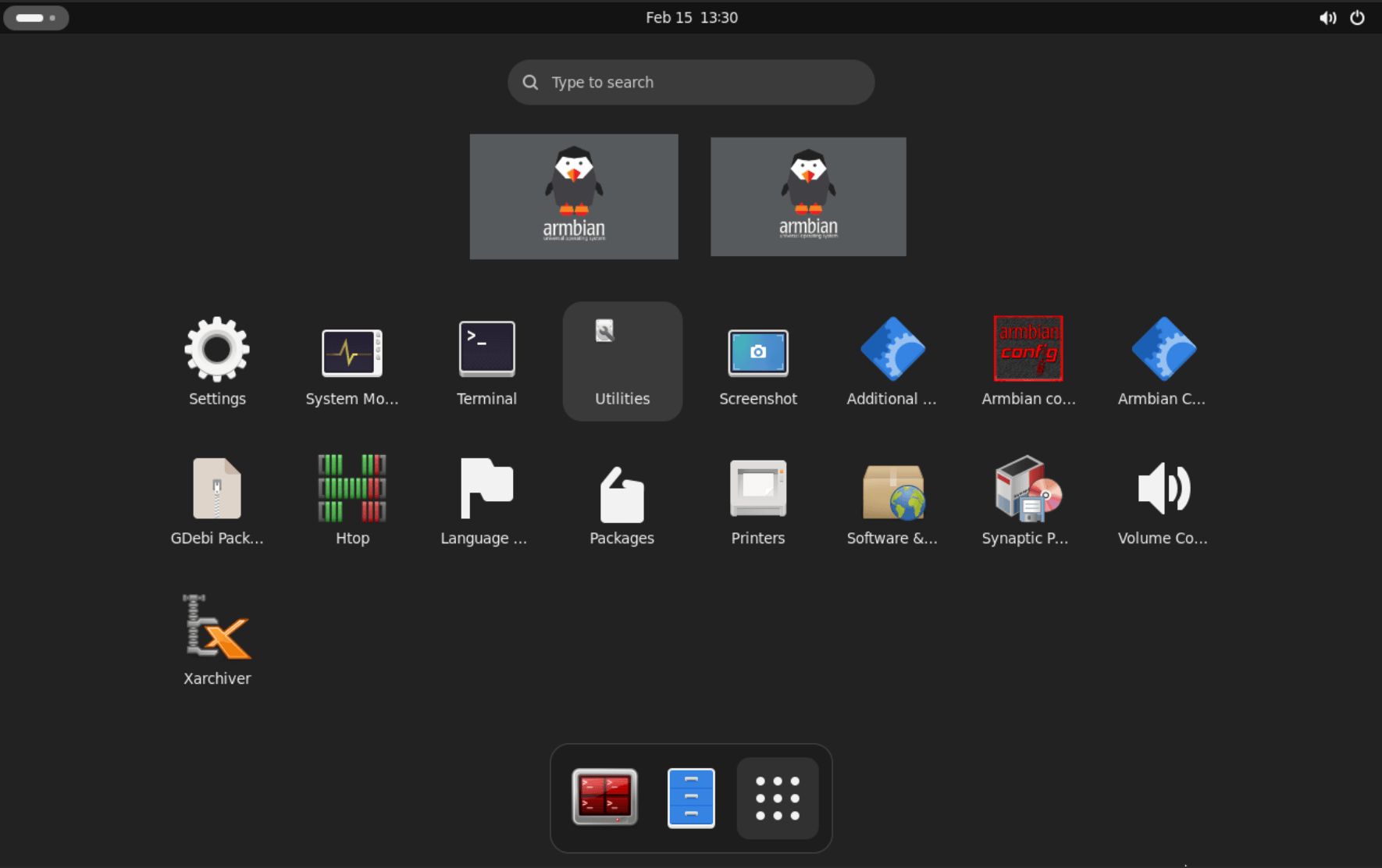
GNOME is a modern, user-friendly desktop environment for Linux, offering a clean interface, essential apps, and customization through extensions. It prioritizes simplicity, accessibility, and efficiency.
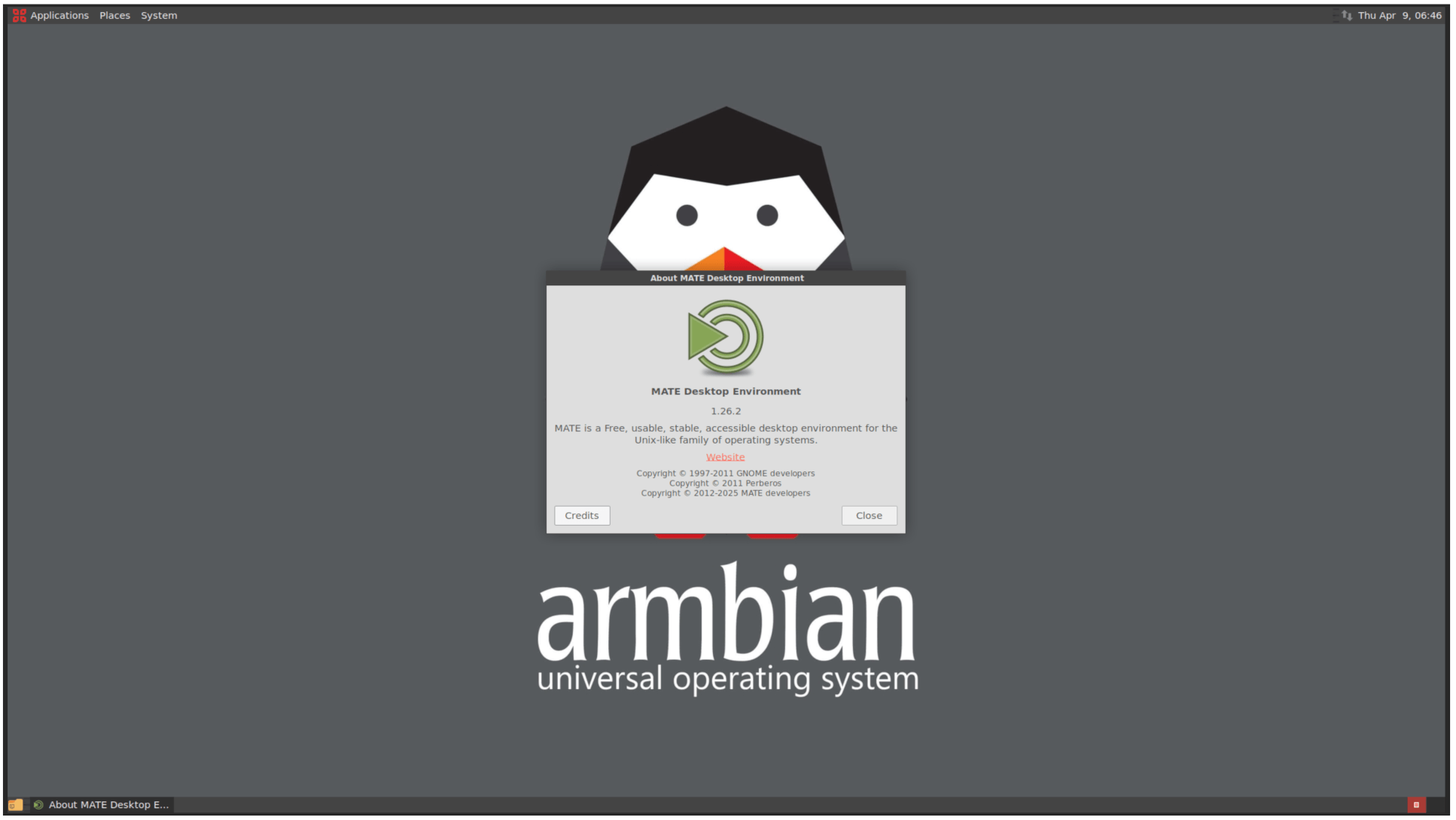
MATE is a continuation of GNOME 2, providing a traditional desktop experience with a classic two-panel layout. It is lightweight, stable, and fully customizable — a good choice for users who prefer a familiar desktop without the overhead of modern compositing effects.
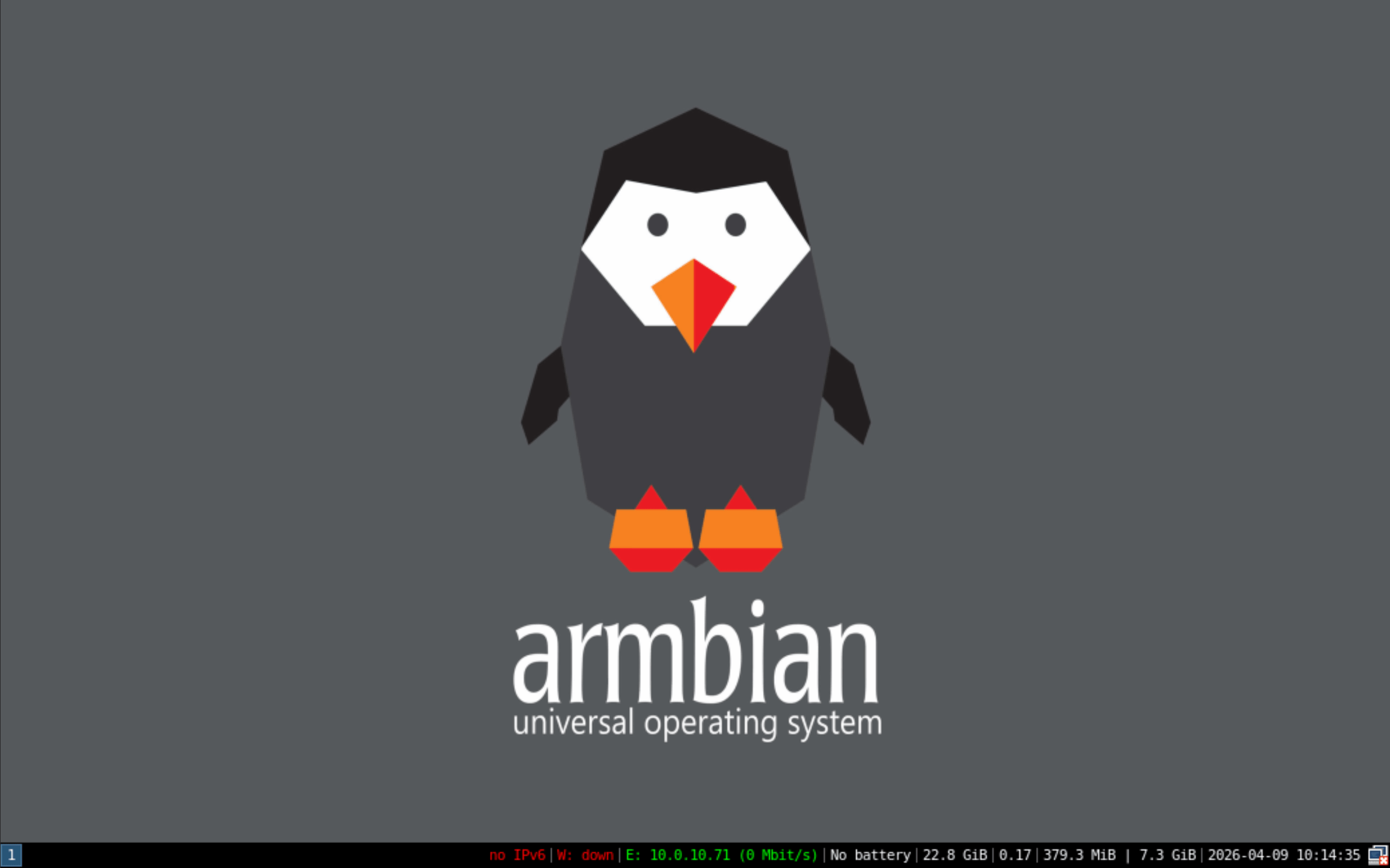
i3 is a tiling window manager designed for power users and developers. It is keyboard-driven, highly configurable, and extremely lightweight — making it ideal for single board computers and headless-to-desktop conversions.
Keyboard shortcuts
i3 is controlled primarily via keyboard. The default modifier key is $mod (Super/Windows key). Press $mod+Enter to open a terminal, $mod+d to launch applications via rofi, and $mod+Shift+e to exit.
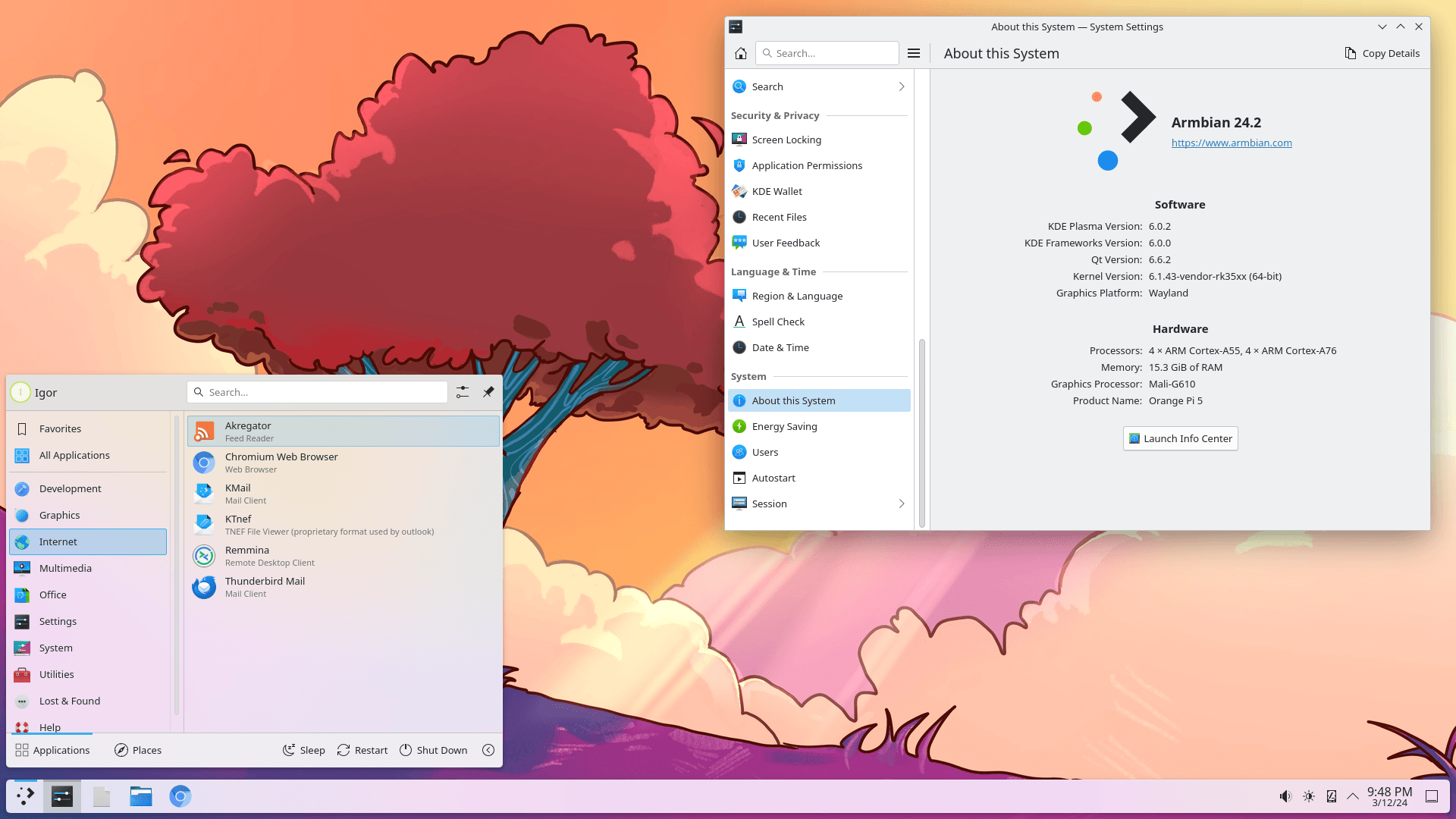
KDE Plasma is a feature-rich desktop environment with extensive customization options. It provides a familiar taskbar and start menu layout with modern effects, widgets, and a powerful system settings application.
Xfce is a lightweight, fast, and user-friendly desktop environment for Linux, offering a classic interface, essential apps, and customization. It prioritizes performance, simplicity, and efficiency, making it an excellent choice for devices with limited resources.