Hardware
Alternative kernels, headers, overlays, bootenv
Alternative kernels
Use alternative kernels
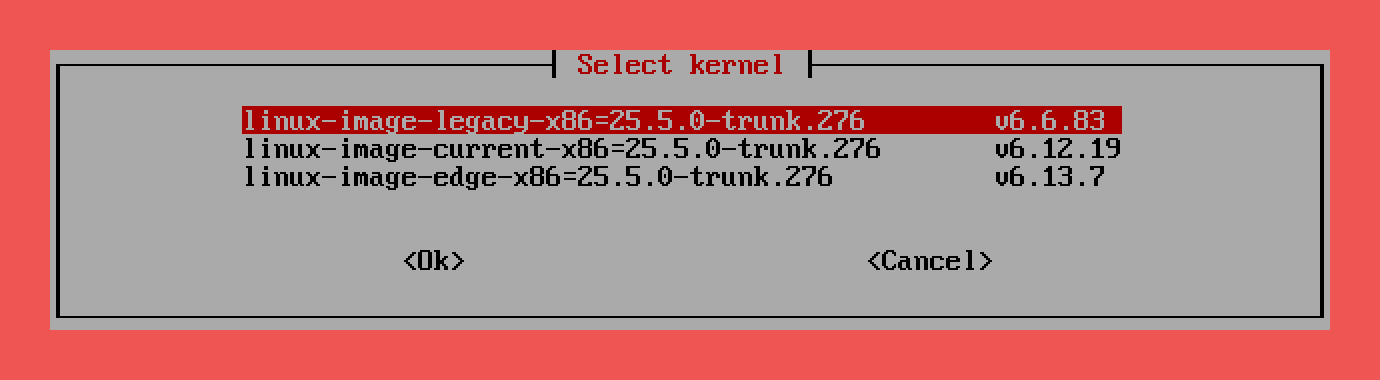
Switching between different kernel versions can significantly impact the functionality of your device. A newer or older kernel may introduce changes to hardware compatibility, drivers, and system stability. Some features may stop working, while others may improve or be reintroduced.
Kernel changes carry inherent risks!
- A mismatched or incompatible kernel may result in boot failures, rendering the system unresponsive.
- Certain peripherals or hardware components (e.g., Wi-Fi, GPU acceleration, or power management) may no longer function correctly.
- Custom configurations or third-party modules might need to be recompiled or adjusted to work with the new kernel.
Precautions Before Switching Kernels Before switching kernels, it is strongly recommended to:
- Back up your system to prevent data loss.
- Verify compatibility of your hardware and essential drivers with the target kernel version.
- Keep a rescue method available, such as a bootable SD card / USB drive or serial console access, to recover the system if necessary.
Recovery Steps if Boot Fails If your device fails to boot after a kernel change, you may need to:
- Revert to a previous working kernel using recovery options.
- Use a serial console or debug mode to diagnose the issue.
- Reinstall the system if no recovery options are available.
Exercise caution when switching kernels, especially on production systems or devices with limited recovery options.
| Alternative kernels | |
|---|---|
Kernel Headers
Install Linux headers

Kernel headers are files required to build modules (drivers) or software that interfaces directly with the Linux kernel. Installing headers ensures compatibility when compiling custom drivers, DKMS modules (like ZFS, WireGuard), or updating third-party software that requires access to kernel internals. The installed headers match your running kernel version and are critical for system extensions and hardware support.
| Kernel Headers | |
|---|---|
| Remove Headers | |
|---|---|
Device Tree Overlays
Manage device tree overlays
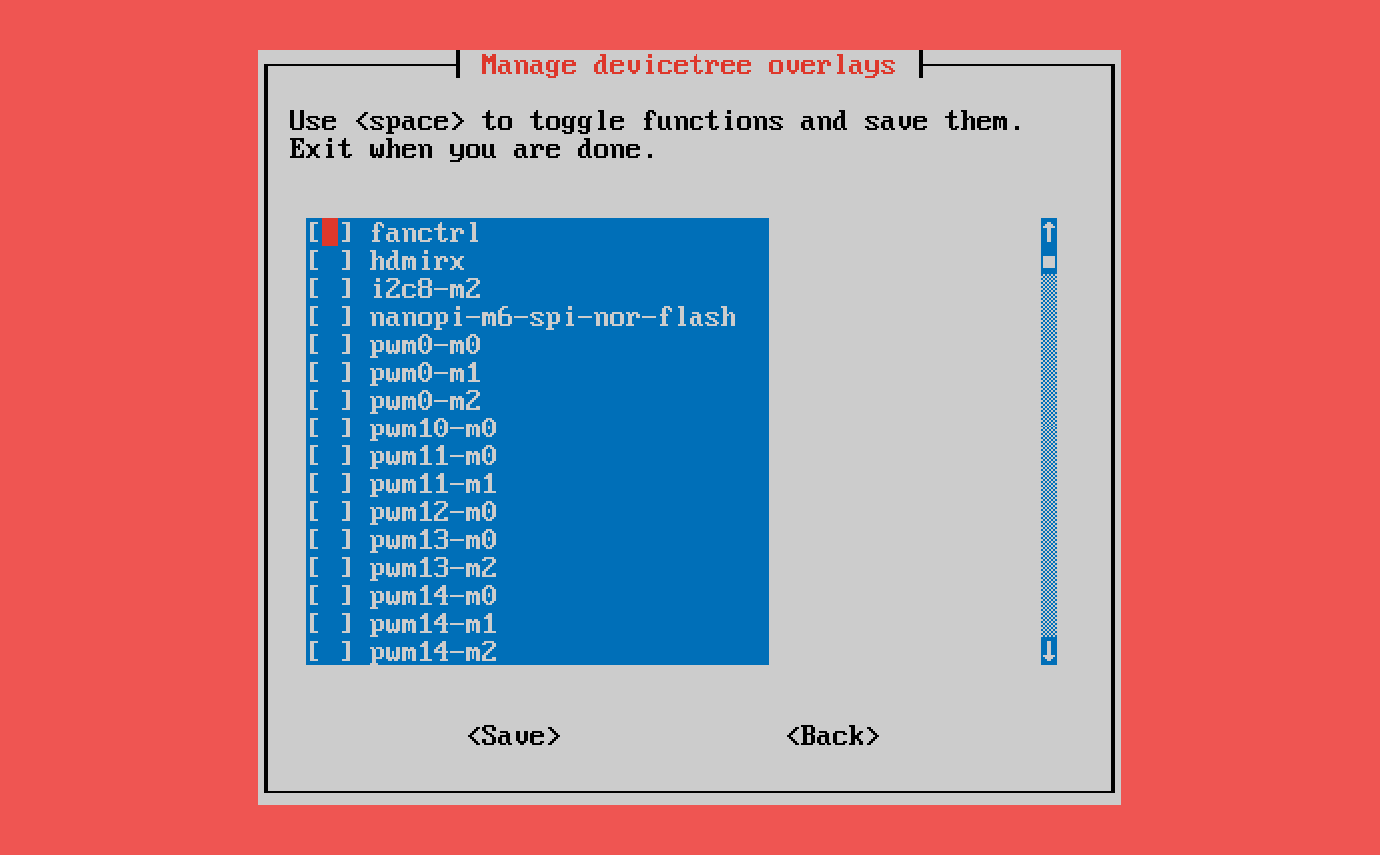
Device Tree Overlays allow you to dynamically modify the Linux device tree at runtime, without rebuilding the kernel. They are used to enable or configure specific hardware features (like GPIO pins, I²C, SPI, sensors, displays) on single-board computers. Overlays are small snippets that can add, change, or remove parts of the hardware description, making it flexible to adapt the system for different peripherals without recompiling the full device tree.
| Device Tree Overlays | |
|---|---|
Device Tree Editor
Edit device tree

The Device Tree Editor allows you to decompile, edit, and recompile device tree blobs (DTB) directly on your system. Device trees describe the hardware layout of your board to the Linux kernel. This tool provides a safe way to modify DTB files by decompiling them to human-readable DTS source, opening them in a text editor, validating the changes, and recompiling back to binary format.
Incorrect device tree changes can prevent your system from booting!
- Modifying the device tree can cause hardware to stop functioning or the system to fail to boot entirely.
- Always verify your changes carefully before applying them.
- A backup is created automatically before any modification, and can be restored from the module menu.
- Keep a rescue method available, such as a bootable SD card or serial console access, to recover the system if necessary.
| Device Tree Editor | |
|---|---|
- Select and edit any DTB file from the device tree directory
- Edit active DTB directly based on the
fdtfilesetting in/boot/armbianEnv.txt - Automatic backups before every modification with timestamped filenames
- Restore from backup to revert to a previous device tree
- Validation of edited DTS source before applying changes
- View device tree info including model, compatible strings, and DTC version
- Package:
device-tree-compiler(installed automatically if missing) - Device tree directory:
/boot/dtb/
Backups are stored in /boot/dtb/backup/ with the naming format:
| Text Only | |
|---|---|
Odroid Boards Config
Select Odroid board configuration
| Odroid Boards Config | |
|---|---|
Boot Environment
Edit the boot environment
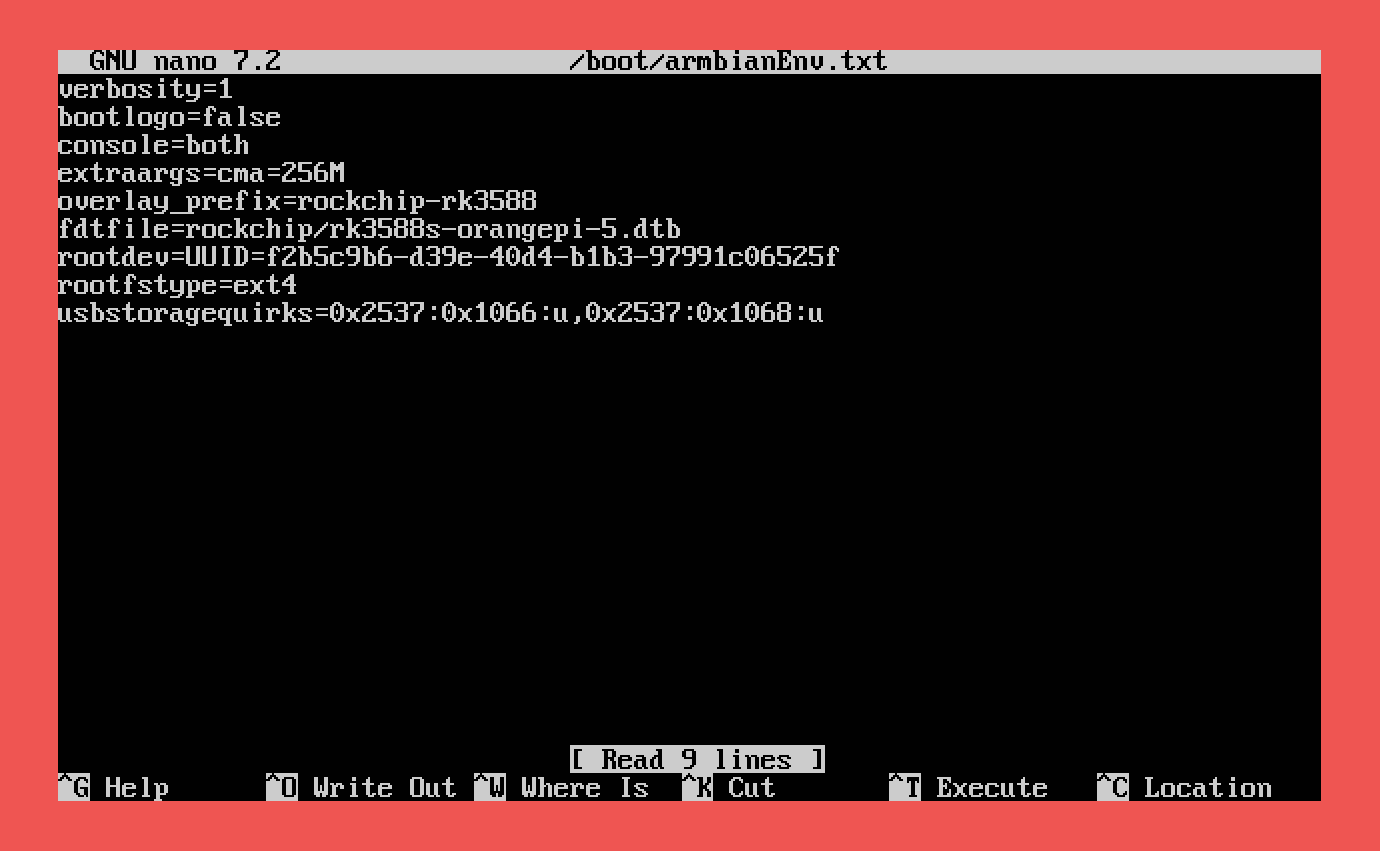
Edit the boot environment allows you to modify critical boot settings stored in /boot/armbianEnv.txt. You can adjust options such as root filesystem location, kernel parameters, overlays, boot targets, or enable advanced features like early serial console. This is essential for fine-tuning hardware support, troubleshooting, or optimizing system startup behavior.
| Boot Environment | |
|---|---|